


AntForms Cover Images: Add Visuals to Every Form Block
Cover images let you attach a photo, illustration, or branded graphic to any individual block in your AntForms form. Each block gets its own image with independent mobile and desktop layout controls, alt text for accessibility, and automatic WebP optimization.
If you build forms for marketing, lead generation, or SaaS onboarding, you want question screens that look polished without writing CSS or resizing images by hand.
TL;DR AntForms cover images attach to individual form blocks (not the whole form), support 6+ responsive layouts for mobile and desktop independently, auto-convert uploads to optimized WebP via a Sharp pipeline, and are included free with a 25 MB storage quota.
Plain text forms convert. Branded forms convert better. A Feathery study of 150+ form statistics found that 35% of users abandon forms that look unprofessional. Adding a cover image to each question turns a generic field into a branded visual step.
Why form images matter for completion rates
Images next to form questions reduce cognitive load and build brand trust. When a respondent sees a relevant photo beside a question, they process that step’s purpose faster than reading instructions alone. Allan Paivio’s dual-coding theory backs this up: people retain information presented both visually and verbally better and act on it faster (Paivio, 1991).
- 35% of users abandon forms that appear unprofessional or unbranded (form statistics, 2025)
- 81% of customers make decisions based on brand trust (Tapflare design statistics)
- 92% of users worry about online privacy, and branded visuals signal legitimacy (Reform.app)
- Consistent branding across form steps satisfies the brain’s need for predictability, reducing drop-off between questions
We saw this on our own AntForms onboarding form. A plain sequence of text fields had a 62% completion rate. We added branded cover images to the first three blocks: logo on the welcome step, product screenshot on the use-case question, team photo on the final step. Completion climbed to 74%. The form content stayed the same.
Branded visuals keep respondents moving through your form because each step looks intentional.
How AntForms cover images work
AntForms uses a per-block architecture where each form question gets its own cover image with separate mobile and desktop layout controls. You attach a cover to each individual question instead of setting one background image for the entire form. Your Name field can show your logo, your feedback question can display a product screenshot, and your final step can feature a thank-you graphic.
Upload or import
You have two ways to add a cover image:
- File upload — drag and drop or click to select a PNG, JPEG, GIF, HEIC, or HEIF file (up to 4 MB)
- URL import — paste any public HTTPS image URL
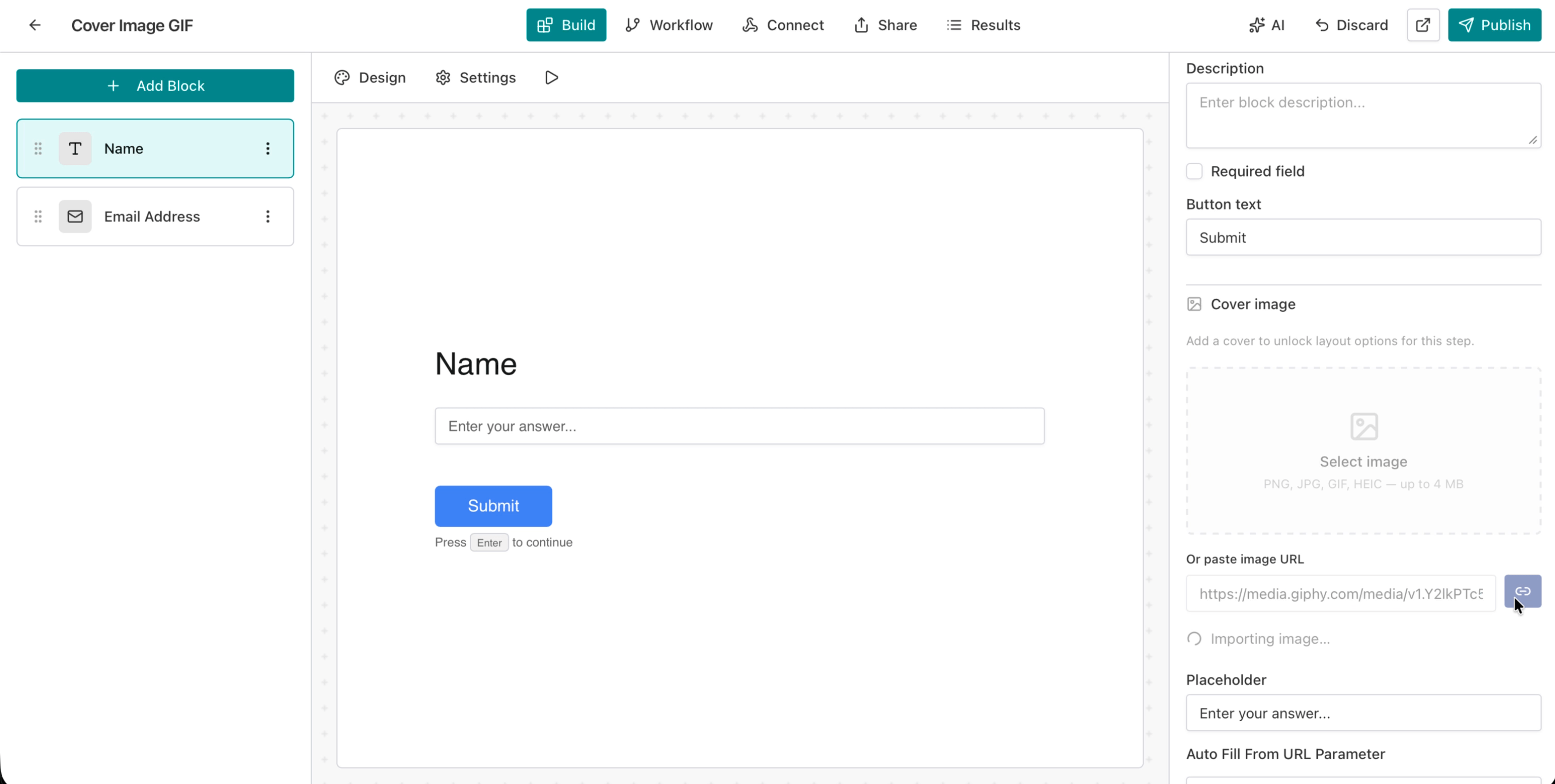
Once you submit a file or URL, AntForms sends it through a processing pipeline. You will see a “Processing…” indicator in the panel while the image is optimized.
Processing pipeline
Every image goes through a three-stage backend pipeline before it reaches your respondents:
- Ingest — the image is fetched (for URLs) or received (for uploads), validated for format and size, and stored in staging
- Process — Sharp, a high-performance Node.js image processing library, converts static images to WebP — a modern image format developed by Google that delivers 25–35% smaller file sizes than JPEG at equivalent quality. AntForms uses WebP quality 82, effort 4, and resizes to a max of 1,920px. Animated GIFs are optimized to 640px max with frame limits.
- Serve — the final image is stored on Cloudflare R2 with
max-age=31536000, immutablecache headers and served via CDN edge caching — a content delivery network that replicates files to servers worldwide so each respondent loads images from the nearest location
Your form loads fast regardless of what you upload. A 4 MB PNG becomes a ~100 KB WebP without visible quality loss.
Building this pipeline was one of the harder engineering challenges. HEIC photos from iPhones needed special handling because Sharp’s HEIC decoder has different pixel-limit thresholds than JPEG. We implemented a three-tier retry strategy (starting at 32 megapixels, stepping up to 128M, then 268M) so ultra-high-resolution photos from modern phone cameras process without failures. Animated GIFs were another edge case: without frame limits, a single GIF could balloon the output past 10 MB, so we capped processing at 640px, 600 frames, and 3.5 MB output.
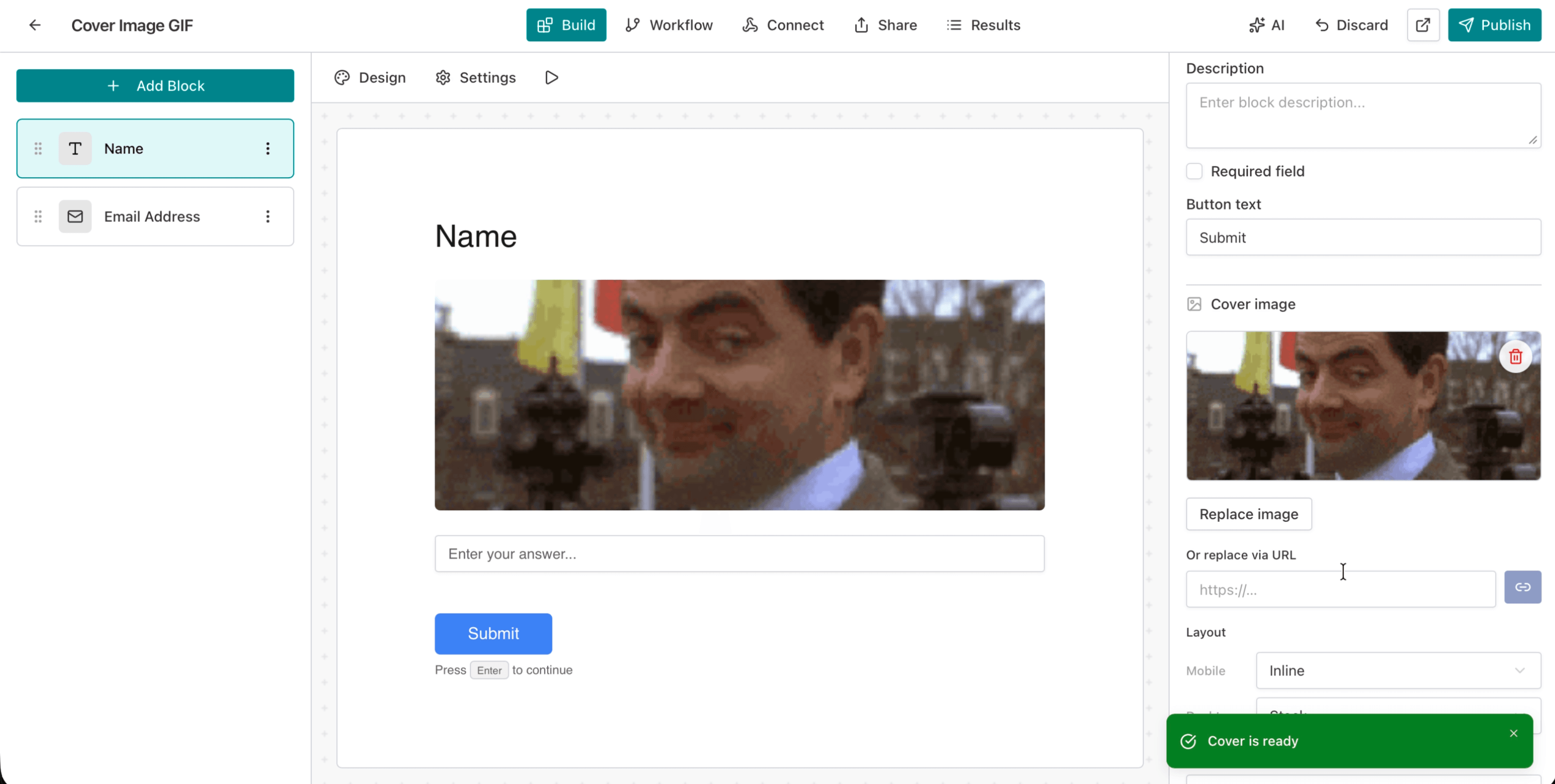
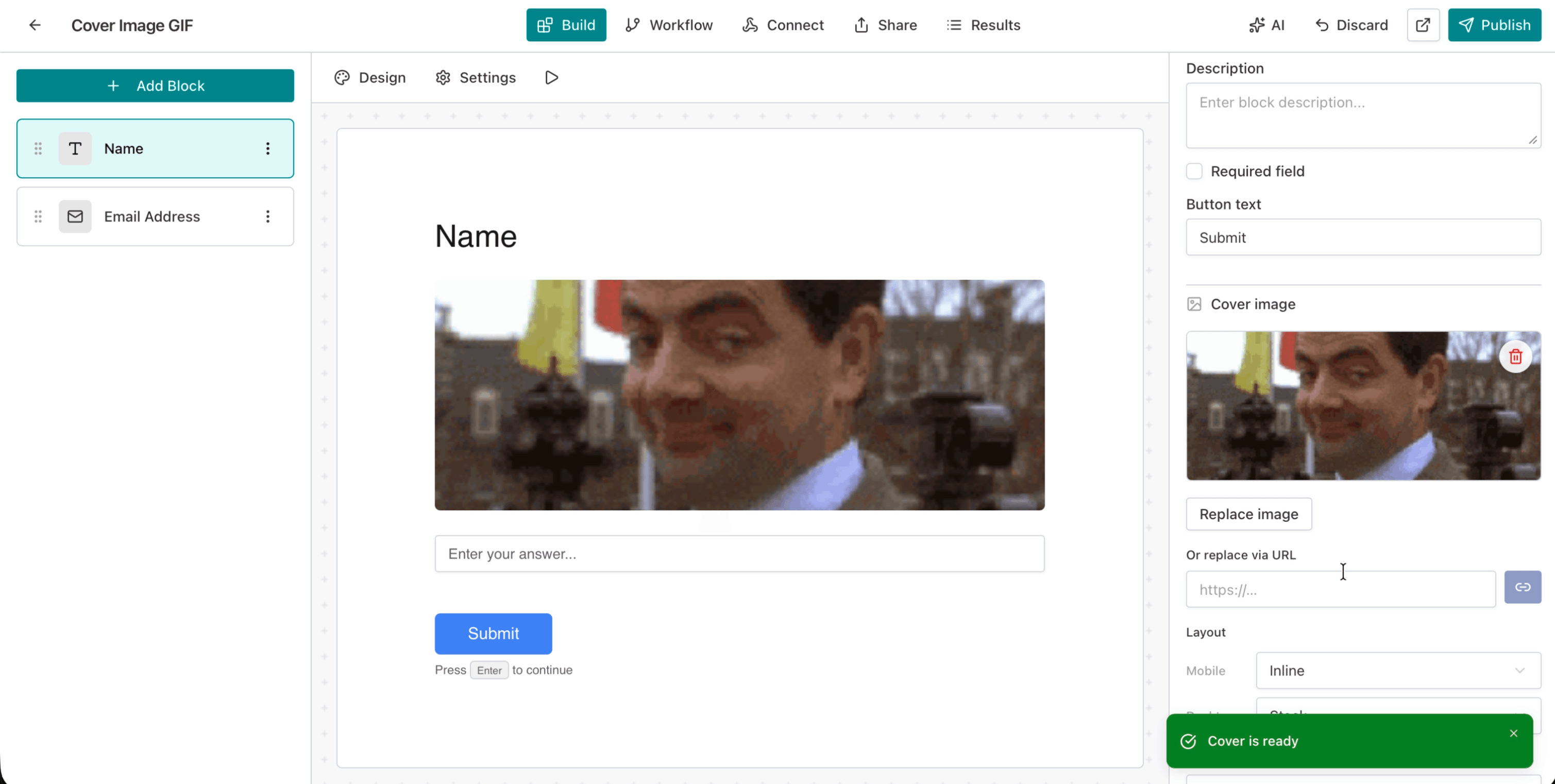
Cover is ready
When processing completes, you see a “Cover is ready” confirmation, and the image appears live in the form editor.
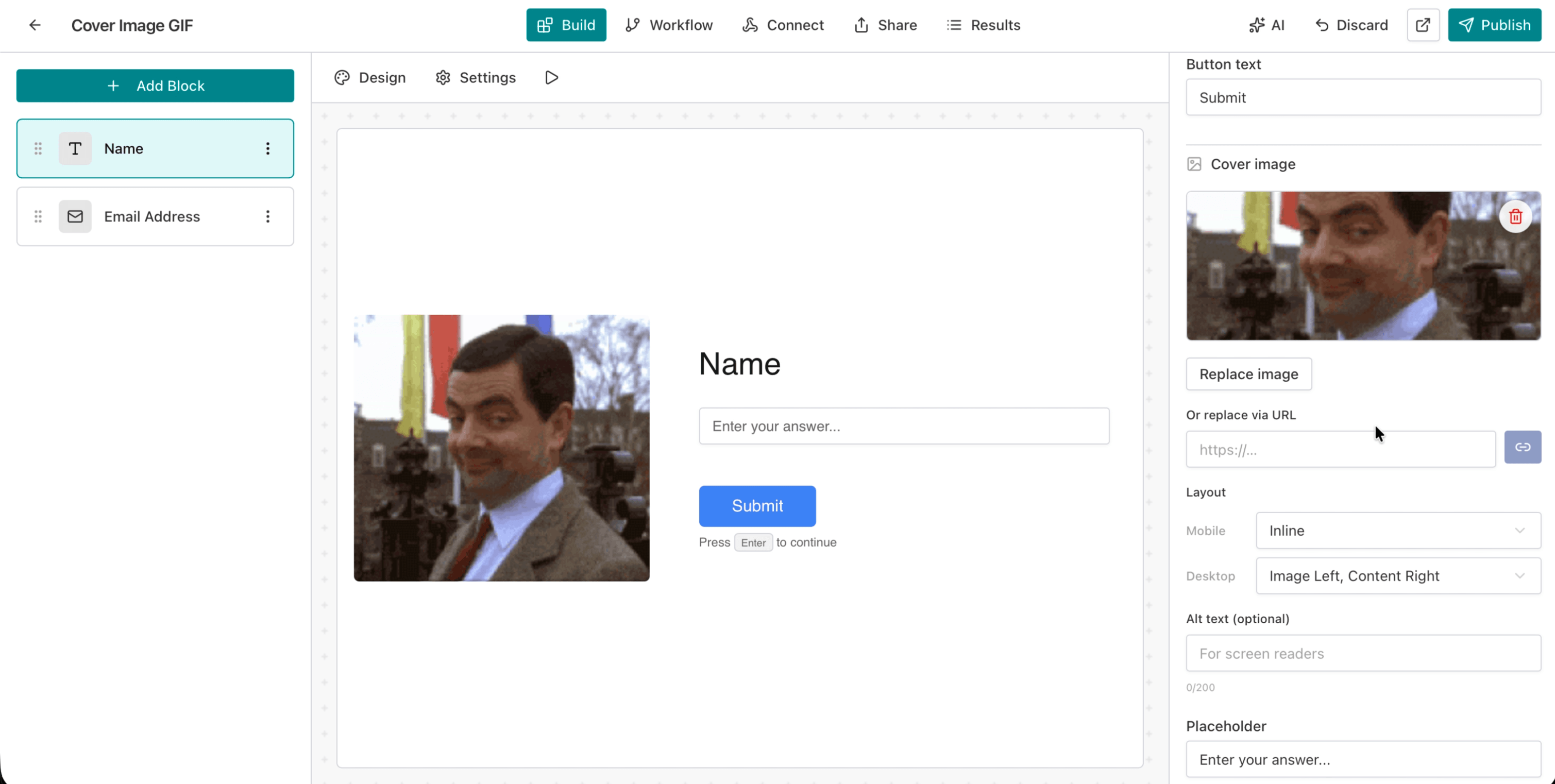
Responsive layouts: mobile and desktop
AntForms is the only form builder that lets you configure image position separately for mobile and desktop on every block. You pick separate layouts for each device class.
Mobile layout options
| Layout | Description |
|---|---|
| Inline | Image stacked below the question label (default) |
| Top | Image above the question label |
| Large Top | Larger image (180–288px) above the question |
Desktop layout options
| Layout | Description |
|---|---|
| Stack | Image stacked vertically with the question (default) |
| Image Left, Content Right | Split view — image on the left, question on the right |
| Image Right, Content Left | Split view — question on the left, image on the right |
| Full Left | Full-height image on the left half of the viewport |
| Full Right | Full-height image on the right half of the viewport |
| Background | Image fills the entire viewport behind the question content |
You can mix layouts. Set Inline on mobile (where horizontal space is limited) and Image Left, Content Right on desktop (where the split layout looks natural).
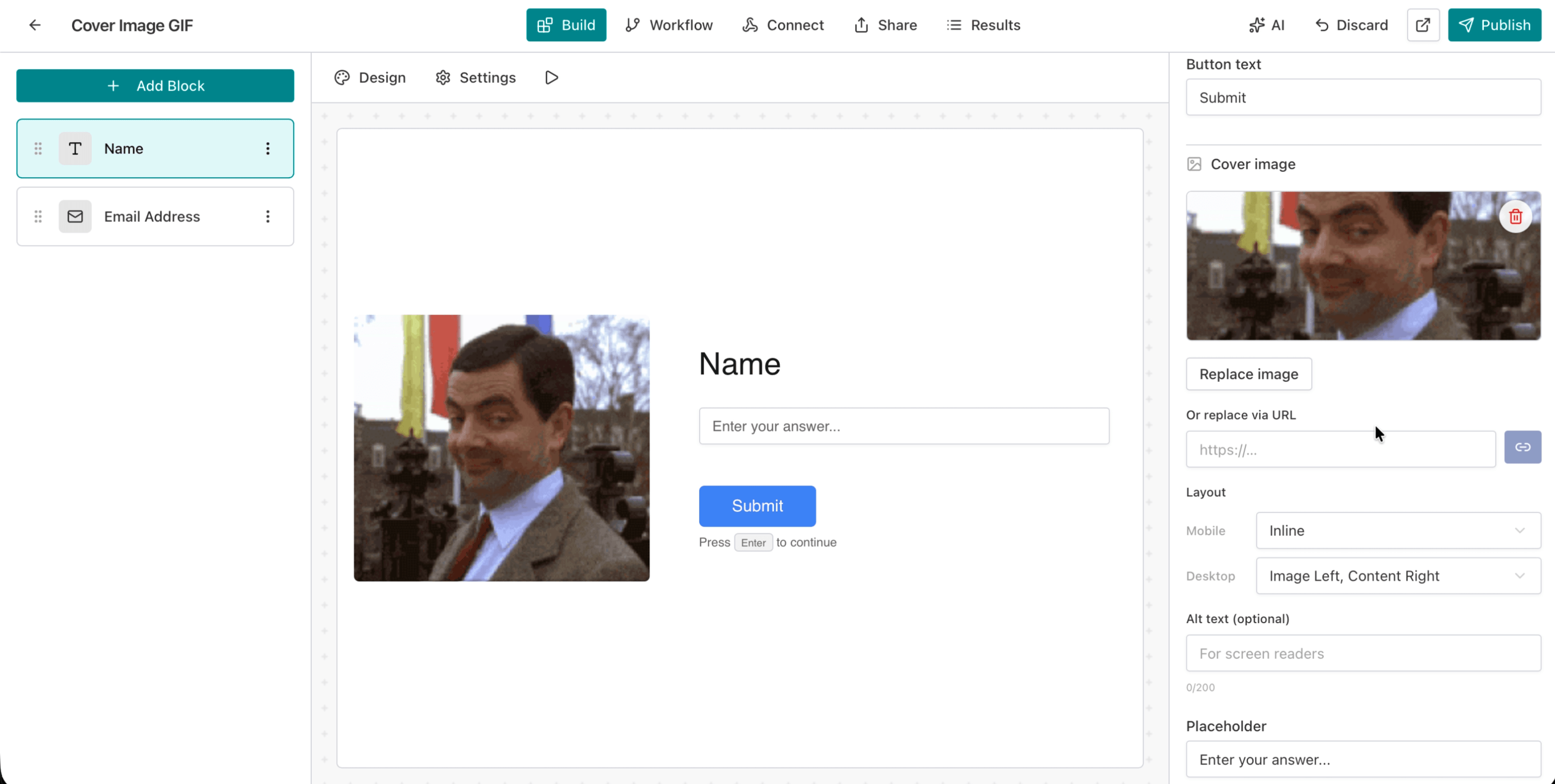
One image per block: brand every step
Per-block cover images let you tailor the visual context to each question instead of using one generic background for the entire form. Multi-step forms benefit the most, because each question serves a different purpose.
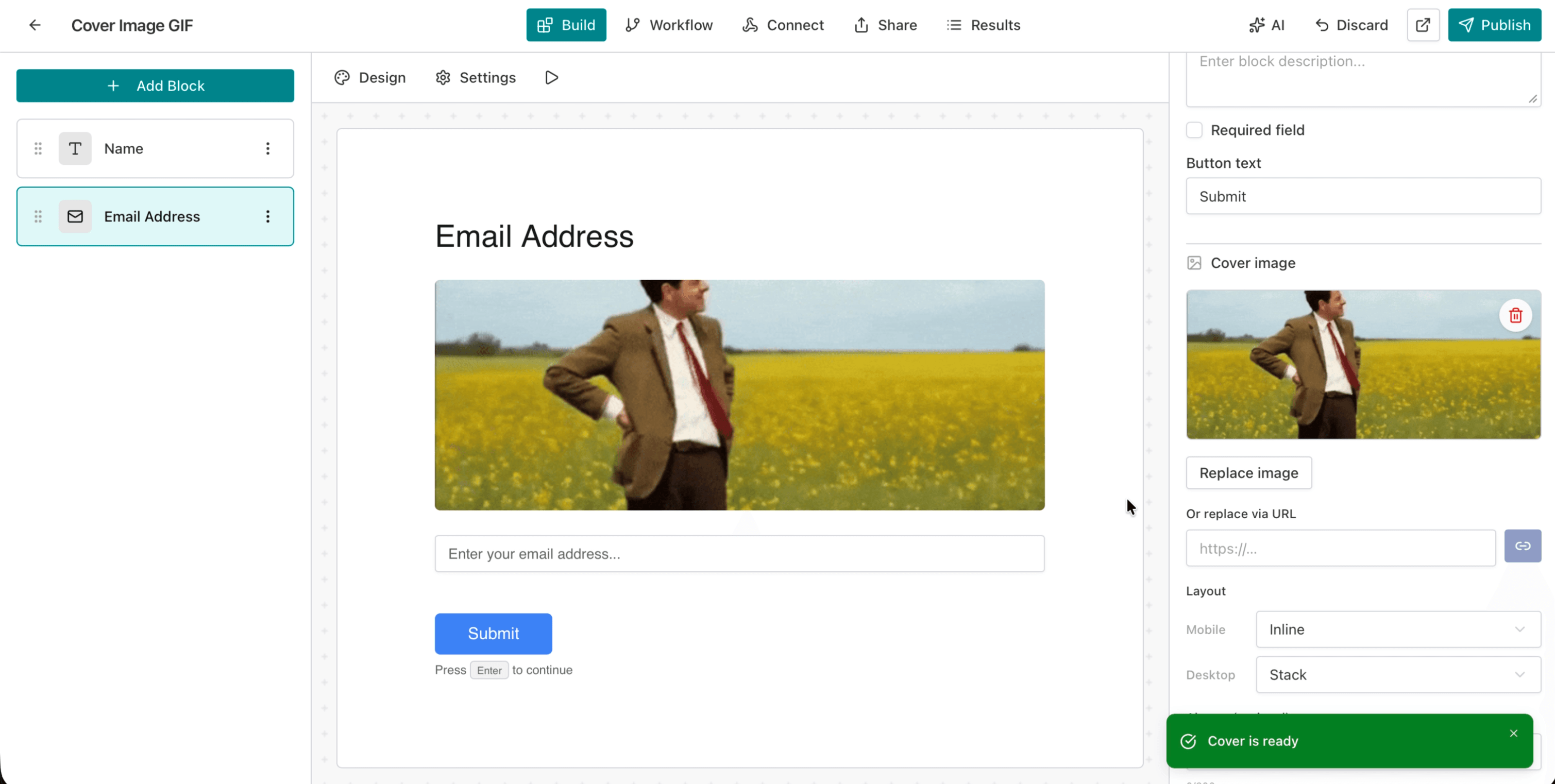
Real-world examples
- Product feedback survey — show a product screenshot on each rating question so respondents know what they are evaluating
- Event registration — display venue photos on the event details block, speaker headshots on the session selection block
- Lead generation — use branded hero graphics on the first block to build trust and qualify leads, product visuals on subsequent questions
- Client intake — display portfolio samples alongside project-scope questions
- Employee onboarding — add team photos and office images to welcome new hires through the form flow
How to add a cover image: step by step
Adding a cover image to any AntForms block takes under three minutes.
- Open the form editor — go to your workspace and click the form you want to customize
- Select a block — click on any block in the left sidebar (Name, Email, or any question type)
- Find Cover Image — scroll down in the right-hand block details panel to the “Cover Image” section
- Upload or paste — either drag a file into the upload area or paste a public HTTPS URL in the URL field, then click the submit button
- Wait for processing — you will see “Processing…” followed by “Cover is ready” (typically 2–5 seconds)
- Set mobile layout — choose Inline, Top, or Large Top from the Mobile dropdown
- Set desktop layout — choose Stack, Image Left, Image Right, Full Left, Full Right, or Background
- Add alt text — type a short description (up to 200 characters) for accessibility and screen readers
- Preview — click the Play button to preview your form and verify the image appears correctly on both device sizes
To replace an image, click Replace Image and upload a new file or URL. To remove it, click the delete icon on the image thumbnail.
Storage quotas and supported formats
Cover images count toward your workspace media storage quota, and automatic WebP compression stretches your capacity:
| Plan | Storage quota |
|---|---|
| Free | 25 MB |
| Pro | 250 MB |
| Business | 250 MB (or custom) |
Since AntForms compresses to WebP, your effective capacity is much higher than raw file sizes suggest. A typical 1 MB PNG compresses to 50–100 KB WebP, meaning the free tier can hold hundreds of cover images.
Supported formats
- PNG — lossless graphics, logos, screenshots
- JPEG — photos, high-color images
- GIF — animated images (640px max, 600 frames max, 3.5 MB output cap)
- HEIC / HEIF — Apple device photos (converted to WebP automatically)
Maximum upload size is 4 MB per image.
Accessibility and alt text
Alt text on cover images makes your form accessible to screen reader users and improves semantic markup for search engines. Each cover image supports an optional alt attribute (up to 200 characters). Screen readers announce this text when a visually impaired respondent navigates your form. If you skip alt text, AntForms still renders the image with proper semantic HTML <img> tags.
Best practices for cover image alt text:
- Describe the image content, not the form question (“Team photo at company retreat” not “Name field image”)
- Keep it under 125 characters for optimal screen reader experience
- Skip decorative images — if the image is aesthetic only, leave alt text empty so screen readers skip it
AntForms vs. other form builders: image features compared
AntForms offers the most flexible per-block image system among free form builders. Other form builders offer image support, but none match the layout control or free-tier scope.
| Feature | AntForms | Typeform | Jotform | Google Forms |
|---|---|---|---|---|
| Per-block cover images | Yes | Limited (one image per question) | Yes (image widget) | Header only |
| Independent mobile/desktop layouts | Yes (6+ layout options) | No | No | No |
| Auto WebP optimization | Yes | No | No | No |
| CDN edge caching | Yes (immutable headers) | Yes | Yes | Yes |
| GIF support | Yes (optimized) | Yes | Yes | No |
| URL import | Yes | No | Yes | No |
| Alt text | Yes | Yes | Yes | No |
| Free tier included | Yes (25 MB) | Paid only | Limited | Free (header only) |
AntForms is the only free form builder that offers per-block cover images with independent responsive layout controls and automatic image optimization, all included in the free tier.
Tips for effective form cover images
Rules for choosing, sizing, and positioning cover images that lift completion rates without slowing load times:
- Use consistent brand visuals. Same color palette, typography overlay style, and image treatment across all blocks. Consistency signals professionalism and builds trust with respondents.
- Right-size your images. Upload at least 1,920px wide for full-width layouts. AntForms handles the compression, so start with high-quality source files.
- Match image to question context. A product photo next to a product rating question, a headshot next to a team feedback question. Matching images reduce the time respondents spend parsing each step.
- Test both devices. A split view that looks great on desktop may crowd the mobile screen. Use AntForms preview to check both. For more mobile design tips, see our guide on designing for the thumb.
- Consider load order. For long forms, the first block’s cover image creates the first impression. Use a strong branded graphic.
- Use split layouts for longer questions. When a block has multiple fields or a long description, Image Left or Image Right prevents vertical scrolling.
- Add alt text. It takes 10 seconds and makes your form accessible to everyone. It also helps with form analytics if you track engagement per block.
What is next
Cover images are the first step in AntForms’ visual customization roadmap. We are building toward a form editor where you configure images, colors, typography, and spacing per block and per device, without touching CSS.
Limitations to know: Cover images add visual weight to your form, and overusing large images on every block can make the form feel slow to navigate even though load times stay fast (images are lazy-loaded). The Background layout works best on desktop; on mobile, it falls back to a top-aligned image. File upload via URL requires a public HTTPS link; authenticated or private image URLs are not supported. Typeform allows video embeds inside questions, which AntForms does not yet support. Jotform’s image widget lets you add multiple images per question with a gallery layout, while AntForms is limited to one cover image per block. There is no built-in image cropping or editing; you need to prepare your images before uploading.
If you want to try cover images now, create a free AntForms account and open any form in the editor. The feature is live for all users, including the free tier.
Key takeaways:
- Cover images attach to individual form blocks, giving you per-question visual control
- Mobile and desktop layouts are independent. Choose the best position for each device
- Every upload is auto-optimized to WebP and served from a CDN with immutable cache headers
- Supported formats: PNG, JPEG, GIF, HEIC/HEIF up to 4 MB
- Free tier includes 25 MB media storage (enough for hundreds of optimized images)
- Alt text keeps your forms accessible to screen reader users