


AntForms Preview: Test Your Forms Before Publishing (2026)
Form preview is a built-in testing mode in AntForms that lets you fill out, validate, and navigate your entire form before publishing, without creating submissions or polluting analytics. AntForms preview renders your form in desktop (16:9) and mobile (375px) modes, uses the same validation engine as published forms, and stores zero data.
We built preview because form creators kept telling us: “I had to submit my own form five times to check if the logic worked, and now my analytics are full of test data.” Preview runs your form through the same validation engine as a published form, but records zero responses.
Key takeaways: AntForms preview is stateless (zero data stored), uses the same validation engine as published forms, supports desktop and mobile device modes, includes a Skip Verification toggle for rapid flow testing, and is available on the free tier. It takes under 5 minutes to preview any form from start to thank-you page.
If you’re building forms with AntForms, you already have conditional logic, block types for every use case, and built-in analytics. Preview closes the last gap: confidence that your form works as intended before you hit Publish.
Why you need to preview forms before publishing
A broken validation rule, a confusing flow, or a misaligned mobile layout costs you real respondents. Preview catches these problems in a safe environment before anyone else sees the form.
Problems preview catches:
- Validation errors that block legitimate respondents from submitting
- Conditional logic paths that skip the wrong blocks or create dead ends
- Mobile layout issues where fields overflow or buttons are unreachable
- Missing required fields that weren’t marked correctly
- Thank-you page copy that says the wrong thing or redirects to a broken URL
According to Nielsen Norman Group research, inline validation alone increases form success rates by 22%. A Baymard Institute study found that 18% of users abandon checkout forms due to a process that was too long or complicated. A single preview run catches those issues. Fill out your form as a respondent would, catch errors, fix them, and preview again, all without leaving the editor.
When we tested preview internally, we caught issues in our own forms that had been live for weeks: a required email field that accepted blank submissions on one logic branch, and a thank-you page that showed the wrong redirect URL after a conditional skip. We built those forms ourselves. You can expect the same kinds of surprises in yours.
How the AntForms preview works
AntForms preview has two modes: a live single-block preview in the editor and a full-form preview modal for end-to-end testing.
Single-block preview (live in the editor)
When you build a form, the center panel of the editor shows the selected block in a 4:3 aspect ratio preview. This updates in real time as you:
- Change the block’s question text, description, or placeholder
- Toggle required/optional
- Modify the form theme (colors, fonts, button styles)
- Reorder blocks in the left sidebar
Select a block and the preview updates instantly. Edit a field, see the result, adjust, repeat.
The single-block preview shows one block at a time with your applied theme, page numbers (if enabled), and the submit button. A focused view for designing individual questions.
Full-form preview modal
Click the Play button in the preview action bar (between Design and Settings) to open the full-form preview. This launches a modal with an embedded iframe that renders your entire form, the same experience your respondents will have.
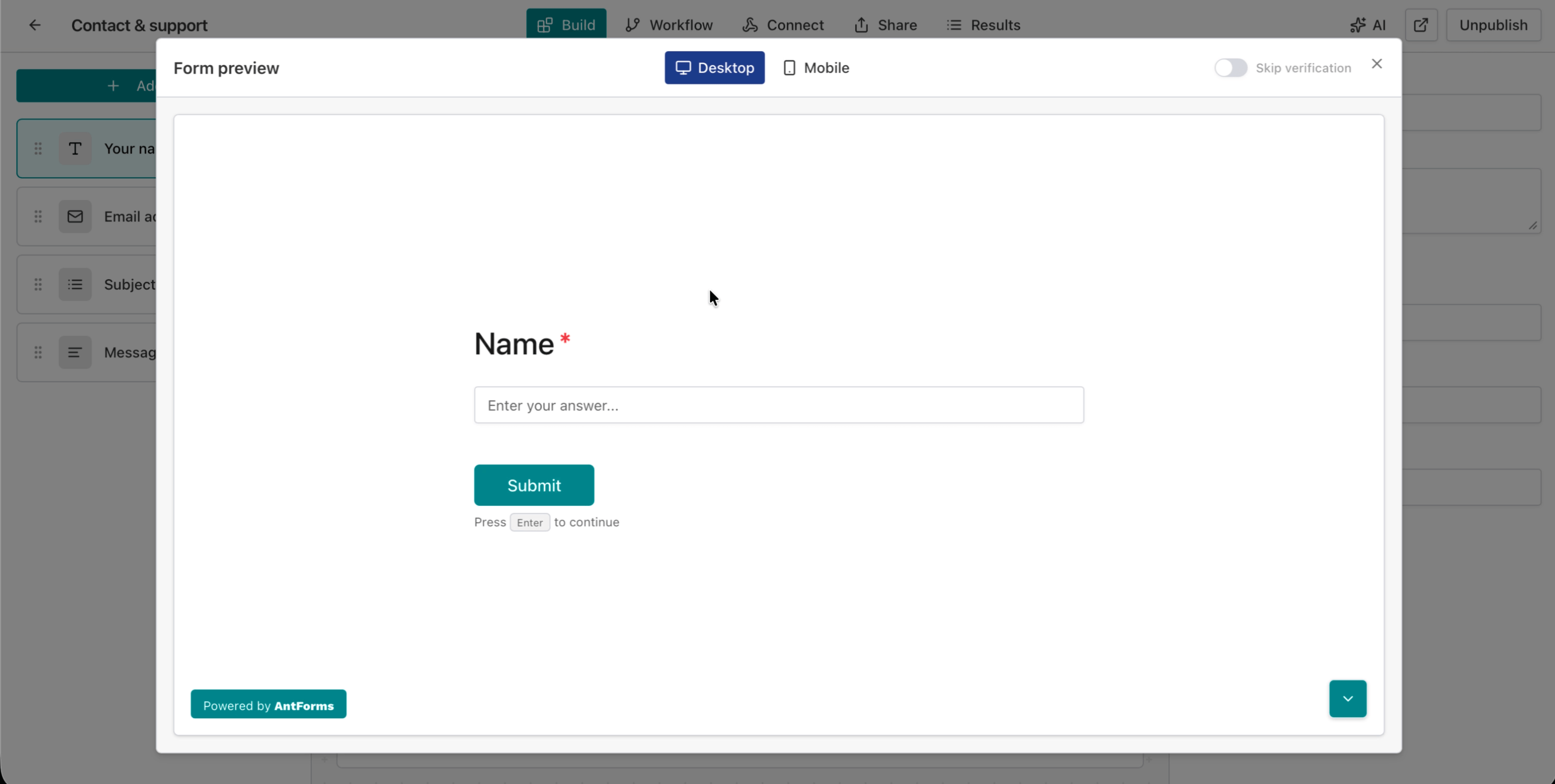
The full-form preview includes:
- Multi-block navigation — step through every block using Next and Back
- Field validation — required fields, email format, number ranges all enforced
- Thank-you page — complete the form to see your configured thank-you message
- Keyboard shortcuts — press Enter to continue, the same as respondents will
You walk through the form as a respondent would, from the first question to the thank-you screen.
Desktop and mobile preview modes
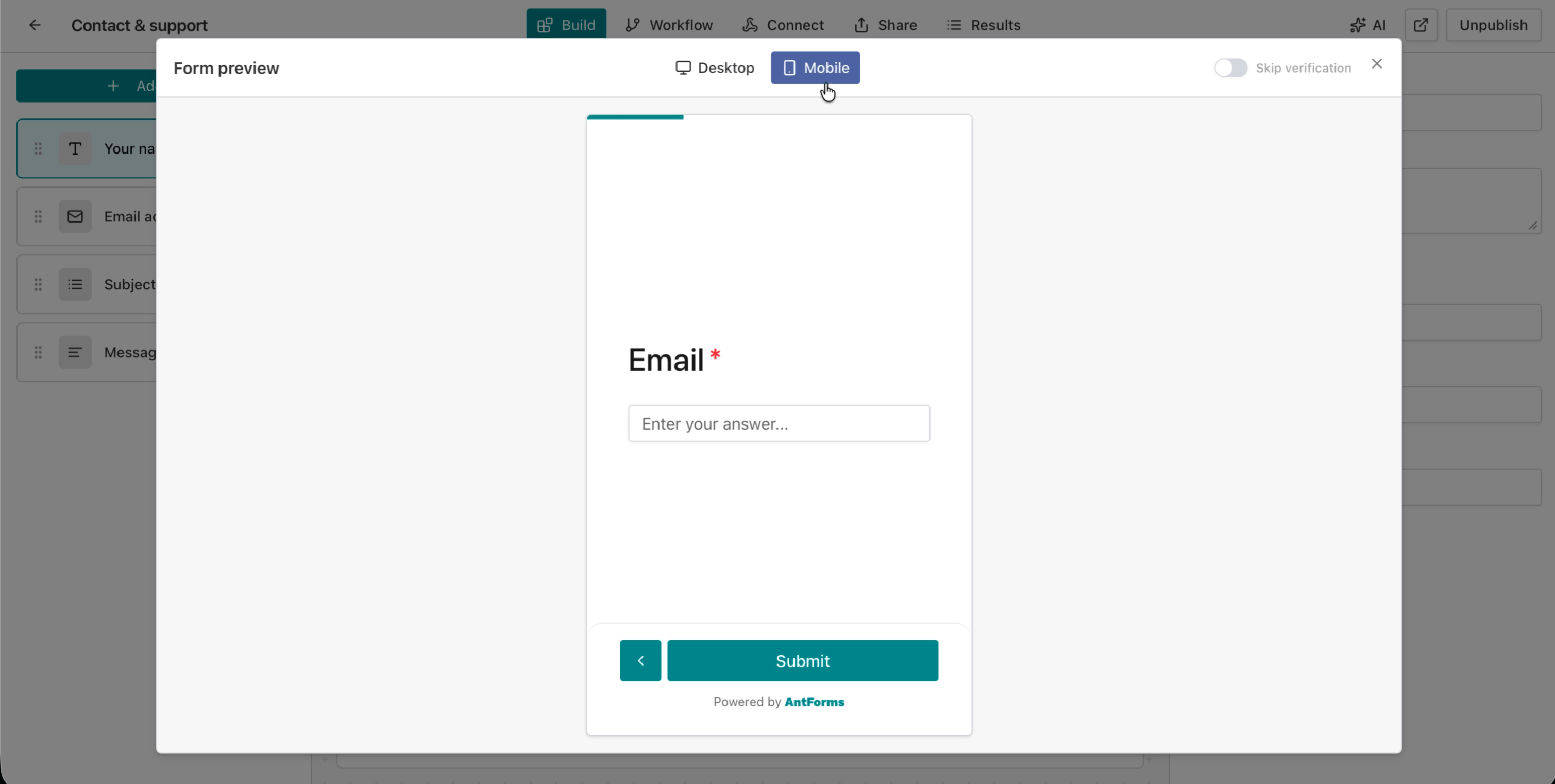
AntForms preview includes desktop (16:9) and mobile (375px) device modes so you can test responsive layouts without leaving the editor.
Over 60% of form traffic is mobile. A form that looks great on desktop can break for most of your audience without you noticing. Device-specific preview modes catch those issues before they cost you submissions.
Desktop preview
Desktop mode renders your form in a 16:9 aspect ratio, matching a standard laptop or desktop browser viewport. This is the default when you open the preview modal.
Use desktop preview to check:
- Field alignment and spacing
- Long labels and descriptions that might wrap
- Cover image layouts on split and background modes
- Table or matrix questions that need horizontal space
- Overall visual balance of your form theme
Mobile preview
Toggle to Mobile in the preview header to switch to a 375px-wide viewport, the width of an iPhone SE, the most common narrow mobile screen. According to Google’s Web Vitals research, mobile form usability affects Core Web Vitals scores, making mobile preview testing essential for both UX and SEO.
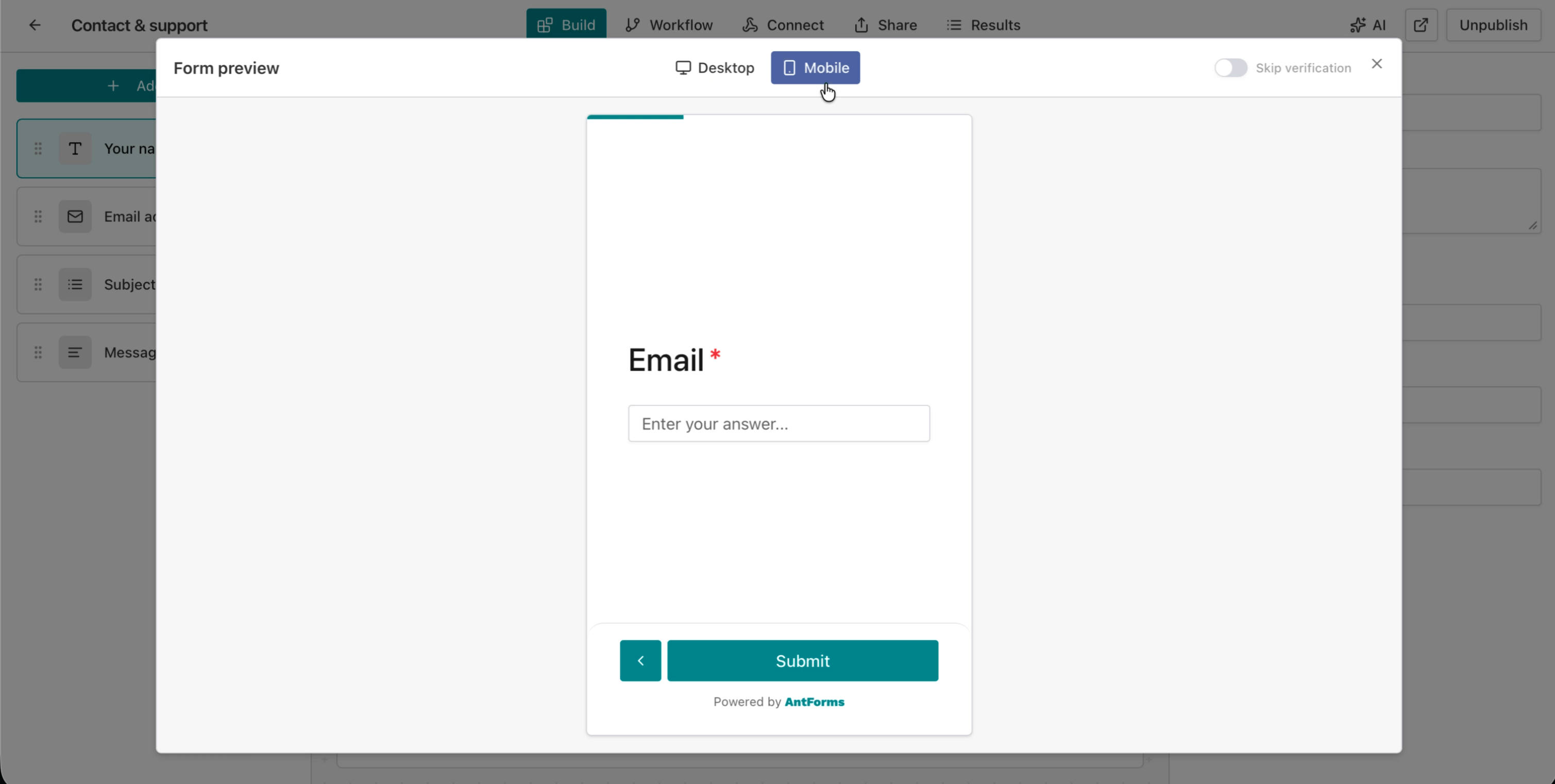
Mobile preview helps you catch:
- Fields or buttons that overflow the viewport
- Text that’s too small to read on a phone
- Touch targets that are too close together
- Submit buttons hidden below the fold
- The “Powered by AntForms” badge positioning
AntForms makes device testing a one-click toggle instead of a separate device test.
Skip verification: test navigation without filling fields
Skip Verification bypasses all field validation so you can click through your entire form flow in seconds without entering data.
Sometimes you don’t need to test validation. You want to click through the form flow to check block ordering, conditional logic paths, or the thank-you page. Skip Verification handles that.
Toggle the Skip Verification switch in the preview modal header to bypass all field validation. Now you can:
- Click Next on every block without entering data
- Test conditional logic branches by providing just the trigger answers
- Reach the thank-you page in seconds
- Verify block ordering after a drag-and-drop reorder
When you turn Skip Verification off, validation enforcement returns immediately. No need to close and reopen the preview. This uses a secure cross-iframe messaging protocol (postMessage) to toggle the setting in real time.
What happens under the hood
AntForms preview validates your responses using the same engine as published forms but never creates sessions, stores responses, or records analytics.
No test data pollution
When you submit a block in preview, the backend validates your responses but never creates a session or stores a response. Your analytics dashboard, response exports, and submission counts stay clean. Other tools require you to delete test submissions manually.
The preview endpoint (/preview/validate-block) validates field responses against the same schema as the public form, then returns the next block — without writing anything to the database.
Same validation, different context
Preview uses the identical validation logic as your published form. The validateBlockClient() function runs on the frontend, and the same server-side schema validation runs on the backend. If a field passes in preview, it will pass when published. If it fails, you’ve caught a real bug.
You can trust preview results. There is no “it worked in preview but broke in production” scenario because both paths share the same validation code. We rejected building a separate “preview validator” because maintaining two validation engines leads to drift, the class of bug preview is supposed to eliminate.
File uploads are disabled
File upload fields display a “Not available in preview” message instead of the upload interface. Preview doesn’t create persistent storage, so accepting file uploads would be misleading. All other 20+ field types (text, email, phone, multiple choice, star rating, NPS, date, signature, matrix, and more) work normally in preview. If you need file upload testing, publish the form and use a password-protected share link to test privately.
Position-based navigation
In preview, block navigation follows position order, the sequence you see in the left sidebar. Published forms can use conditional logic to jump between blocks. For testing conditional logic, use the public form link for the full branching experience. Use preview for validating individual block behavior and overall form flow.
How to preview your AntForms form: step by step
You can preview any AntForms form in under 5 minutes by opening the Play button modal, testing on desktop and mobile, and verifying your thank-you page.
- Open the form editor — go to your workspace, click the form you want to test
- Check the single-block preview — select blocks in the left sidebar, review each one in the center panel
- Click the Play button — in the action bar above the preview panel, click the play icon to open the full-form preview modal
- Choose your device — toggle between Desktop and Mobile in the modal header
- Fill out the form — enter test data in each field, click Next to advance
- Toggle Skip Verification if needed — switch it on to skip required fields and test navigation flow
- Complete the form — verify the thank-you page renders correctly with your message
- Close and fix — close the modal, make changes, then preview again
The preview modal doesn’t auto-refresh when you make changes in the editor. Close the modal, make your edits, and reopen it to see the updated form.
Preview vs. published form: key differences
Preview and published forms share the same validation engine but differ in data storage, navigation, and access control.
| Aspect | Preview | Published Form |
|---|---|---|
| Access | Form owner only (authenticated) | Anyone with the link |
| Data storage | None — completely stateless | Sessions, responses, and analytics recorded |
| File uploads | Disabled | Fully functional |
| Navigation | Position-based (sequential) | Conditional logic branching |
| Validation | Same rules as published | Same rules as preview |
| Webhooks | Not triggered | Triggered on submission |
| Analytics | Not recorded | Views, completions, drop-off tracked |
| Skip verification | Available | Not available |
| Device modes | Desktop (16:9) and Mobile (375px) | Responsive to actual device |
Security and privacy in preview
AntForms preview requires authentication, workspace ownership, and CSRF tokens, ensuring no data is stored or exposed during testing.
Preview is locked down by design:
- Authentication required. Valid JWT token, verified email
- Workspace ownership. Only the workspace owner can preview forms in that workspace
- Form ownership. Transitive check ensures you own the form you’re previewing
- CSRF protection. All preview requests require a valid CSRF token
- Same-origin enforcement. Cross-iframe messages are validated against
window.location.origin - No PII exposure. No sessions, no body logging, no response persistence
You cannot share a preview link with a teammate or client. Preview is for the form creator only. If you need external review before publishing, use the Share tab to generate a public or password-protected link. For more on how AntForms handles data security, see our guide on building secure, GDPR-compliant forms.
Real-world preview workflows
Scenarios where form creators use preview to catch errors, test conditional logic, and verify mobile layouts before publishing.
Contact form quality check
Building a contact form with name, email, subject, and message fields? Preview each block in the single-block view to check label text and placeholder copy. Then open the full preview to test the complete flow — submit with a missing email to verify the required field error, try an invalid email format, and complete the form to check your thank-you message.
Survey with conditional logic
If you’ve built a survey with conditional logic that branches based on NPS scores, use Skip Verification to navigate to the branching point fast. Then turn it off and test both paths: enter a score below 7 to check the follow-up question, then preview again with a score of 9+ to confirm it skips correctly.
Event registration on mobile
For an event registration form, switch to mobile preview and step through every block. Check that date pickers render at 375px, that long event descriptions don’t overflow, and that the submit button is tappable.
Multi-step lead generation
Testing a lead generation form with multiple steps? Use the full preview to verify that progress feels natural, that each step has the right number of fields, and that the thank-you page includes your CTA or redirect URL.
Tips for effective form previewing
Practices to catch the most issues in the fewest preview runs.
Preview on mobile first. Most form issues are mobile issues. Start there, then verify desktop.
Test validation edge cases. Try empty submissions, too-long inputs, invalid email formats, and boundary values for number fields.
Check the thank-you page. Respondents see it last, so confirm the message and any redirect URL work.
Preview after every major change. Reordered blocks? Changed conditional logic? Added required fields? Preview again.
Use Skip Verification for flow checks. Good for testing navigation and block order, but do one full validated run before publishing.
Review on both device modes. A form that looks great on desktop might have overlapping elements on mobile. Test both.
What’s next
Form preview gives you a stateless, private testing environment with desktop and mobile modes, skip verification, shared validation logic, and full security controls. No test submissions created.
Limitations to know: Preview uses position-based navigation, so conditional logic branches are not fully testable in preview mode. Use the published form link for end-to-end branching tests. File upload fields are disabled in preview since no persistent storage is created. The preview modal does not auto-refresh when you make editor changes; close and reopen it to see updates. Typeform’s preview supports full conditional logic branching inline, and Jotform lets you preview with pre-filled URL parameters for testing dynamic defaults. AntForms does not support either of these yet. There is also no way to share a preview link with a teammate for collaborative review; you must publish first or share your screen.
Preview is live for every AntForms form, free tier included. We’re building this feature alongside form analytics, webhooks for instant notifications, and AI-assisted form building.
Create your first form for free and try the preview before you publish. For more on building forms that convert, read our guides on high-converting form strategies, A/B testing forms, form templates for every use case, and what you can build with AntForms.