

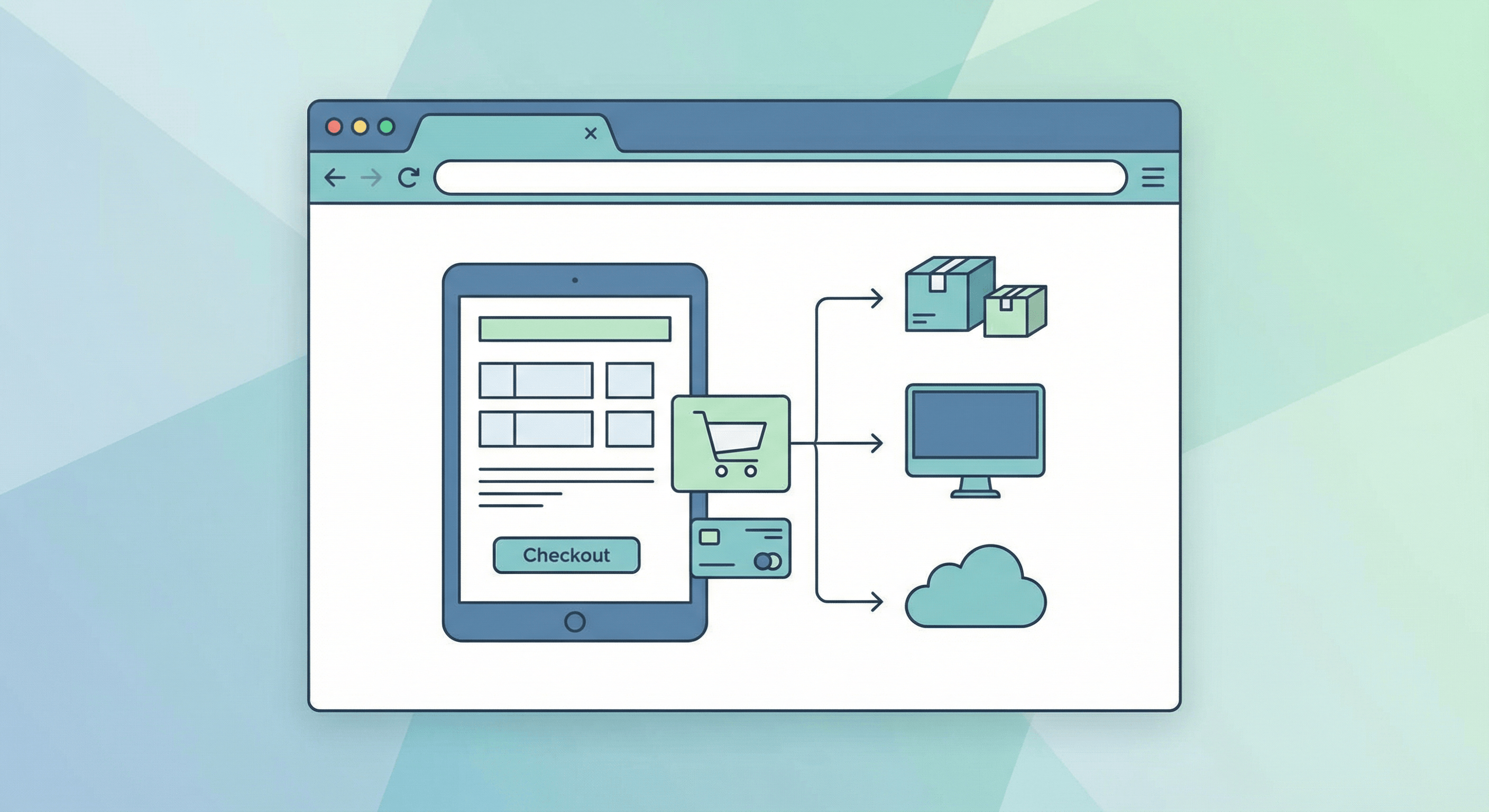
Online order forms let customers choose items, options (e.g. size, add-ons), and pickup or delivery—then submit so you get a structured order. In 2026, you can build them with a form builder that supports conditional logic (e.g. show “Delivery address” only when they choose delivery) and webhooks to send orders to your system or sheet. This guide walks through how to create an online order form step-by-step using Antforms (workflow and branching, unlimited responses, webhooks). An online order form is ideal for small businesses, caterers, bakeries, and service providers who don’t need a full ecommerce cart but want a clear, automated order flow.
What an online order form needs
- Items or product selection. Multiple choice, dropdown, or checkboxes. “What would you like?” with options and maybe quantity (number field).
- Options. Size, color, notes. Use conditional logic so “Delivery address” only shows when “Order type?” = Delivery. “Pickup time?” when Pickup.
- Contact. Name, email, phone. Required for fulfillment and confirmation.
- Thank-you and confirmation. “Order received. We’ll confirm by email.” Optional: redirect to a confirmation page or send a receipt via your backend.
In Antforms, you add blocks for each step: Order type (Pickup / Delivery), then workflow and branching — When Delivery → go to “Delivery address” block; When Pickup → go to “Pickup time” or straight to “Items.” Then Items, Contact, Submit. Unlimited responses let you take as many orders as you need; webhooks POST each submission to your order system or Google Sheet in 2026. See order form for a small bakery for a full example.
Step-by-step in Antforms
1. Create a new form. Name it (e.g. “Online order”).
2. Add Order type block. Multiple choice: Pickup / Delivery. This drives branching.
3. Add conditional blocks.
- “Delivery address” (long text or separate fields). Set rule: When [Order type] = Delivery, go to [Delivery address].
- “Pickup time” or “Preferred time” (optional). When [Order type] = Pickup, go to [Pickup time] or to [Items].
4. Add Items block. Multiple choice or checkboxes for products; add a number field for quantity if needed. Or one block per product with quantity. Keep it simple so submission payload is consistent.
5. Add Contact block. Name, email, phone. Required.
6. Add thank-you. Message: “Thanks! We’ll confirm your order by email.” Optional: redirect URL.
7. Configure webhook. In Antforms, add webhook URL (your endpoint or Zapier/Make). Each order submission POSTs with all answers. Map to your order system or sheet so orders are captured automatically in 2026.
8. Test. Submit as Pickup and as Delivery; confirm the right blocks show and webhook receives correct data.
Best practices
- Mobile-friendly. Many orders come from phones. Antforms forms are responsive.
- Clear options. Product names and options (size, etc.) should be obvious. Add prices in the label if you’re not using a separate cart.
- Confirmation. Email confirmation can be handled by your webhook (e.g. trigger email from your backend). Or use a thank-you page with “We’ll email you at [email].”
Handling items, quantity, and pricing in your order form
An online order form can list items as multiple choice or checkboxes; add a number field for quantity next to each item or use a single “Quantity” field per product block. If you need to create order form flows with pricing, you have two main approaches: (1) Include price in the label (e.g. “Large pizza – $12”) so the customer sees it and you can parse from the response or (2) Use your webhook/backend to look up prices by product name and calculate total. The form builder captures choices and quantities; your system or sheet applies pricing and sends the receipt. For ecommerce form simplicity, keep product list and options in the form and do calculations off-form so the order form builder stays flexible without custom code in 2026.
Connecting your order form to fulfillment with webhooks
Webhooks make your online order form part of your operations. On each submit, Antforms sends the full payload (order type, items, quantities, contact, delivery address if applicable) to your URL. Your endpoint can: append a row to Google Sheets or Airtable for a simple order log; trigger an email to you and the customer; create an order in your POS or inventory system; or post to Slack for the team. Use consistent field names (e.g. order_type, items, contact_email) so mapping is reliable. With unlimited responses, you can scale orders without hitting caps; form analytics show completion and drop-off so you can streamline the create order form flow over time. For more examples, see order form for a small bakery and form templates to automate business.
Summary
Create an online order form in 2026 with conditional logic (pickup vs delivery), items and contact blocks, and webhooks to your order system. Build with Antforms for workflow and branching and unlimited responses. For more, see order form for a small bakery and form templates to automate business. Try Antforms free to build your order form.