


Send Form Submissions to Your CRM with Webhooks — Setup Guide
Problem: Form leads land in your form builder’s inbox. Someone has to copy them into your CRM. Leads slip, follow-up slows, and pipeline data is always behind.
Solution: Use webhooks to send every form submission to your CRM in real time. One endpoint URL, one toggle—no manual steps, no missed leads. Webhook CRM integration and field mapping let you push form leads into your lead pipeline automatically.
This guide is for sales and marketing teams who want form submissions in their CRM (HubSpot, Salesforce, Pipedrive, or any API) without Zapier/Make or manual entry. You’ll see the exact webhook payload, how to add a webhook in the form builder, and how to verify requests so only your app receives them. What you’ll get: every submission as an HTTP POST, structured payload, optional signing, and delivery history. For a form builder with unlimited responses and webhooks, see our best free form builder for surveys and automate lead qualification with conversational forms. For more, see webhooks for developers, sync form data to Google Sheets or Airtable, and instant lead notifications with webhooks.
What you get
- Every submission sent as an HTTP POST to your chosen URL (e.g. your CRM’s webhook or API endpoint).
- Structured payload with
event_id,event_type,created_at, anddata(form id/title/slug, session id/status/timestamps, anddata.responseskeyed by block label withblockId,blockType, andresponses). - Optional signing secret so your server can verify requests using the
X-Jupiter-Signatureheader. - Delivery history in the app: see success/failure, response code, and retry failed deliveries.
No per-response limits for webhooks in the plan you’re on—you can send every lead to your CRM in real time.
Webhook payload template (form_response)
When someone submits your form, we send an HTTP POST to your webhook URL with a JSON body. Headers include Content-Type: application/json, User-Agent: Jupiter-Forms-Webhook/1.0, X-Jupiter-Event-Id, X-Jupiter-Event-Type, and (if you set a secret) X-Jupiter-Signature. Use this shape to map fields into your CRM:
{
  "event_id": "550e8400-e29b-41d4-a716-446655440000",
  "event_type": "form_response",
  "created_at": "2026-02-15T14:32:00.000Z",
  "data": {
    "form": {
      "id": "form-uuid",
      "title": "Contact us",
      "slug": "contact-us"
    },
    "session": {
      "id": "session-uuid",
      "status": "COMPLETED",
      "started_at": "2026-02-15T14:31:00.000Z",
      "completed_at": "2026-02-15T14:32:00.000Z",
      "metadata": {}
    },
    "responses": {
      "Name": {
        "blockId": "block-uuid-1",
        "blockType": "SHORT_TEXT",
        "responses": { "text": "Jane Doe" }
      },
      "Email": {
        "blockId": "block-uuid-2",
        "blockType": "EMAIL",
        "responses": { "email": "jane@company.com" }
      },
      "Company": {
        "blockId": "block-uuid-3",
        "blockType": "SHORT_TEXT",
        "responses": { "text": "Acme Inc" }
      },
      "Message": {
        "blockId": "block-uuid-4",
        "blockType": "LONG_TEXT",
        "responses": { "text": "Interested in Enterprise plan" }
      }
    }
  }
}- event_id — Unique UUID per event (use for idempotency).
- event_type — Always
form_responsefor form submissions. - created_at — ISO 8601 timestamp when the event was created.
- data.form — Form
id,title,slug. - data.session — Session
id,status,started_at,completed_at,metadata. - data.responses — Map of block label (e.g. “Name”, “Email”) →
{ blockId, blockType, responses }. Eachresponsesobject has field keys (e.g.text,email) and the submitted value. Map these into your CRM fields.
Your CRM endpoint should respond with 2xx so we mark the delivery as successful. We retry on 5xx, 429, and timeouts (exponential backoff, up to 5 attempts). 4xx (except 429) are not retried. The response body you return is recorded in Deliveries for debugging (truncated to 2000 characters).
How to add a webhook (step-by-step)
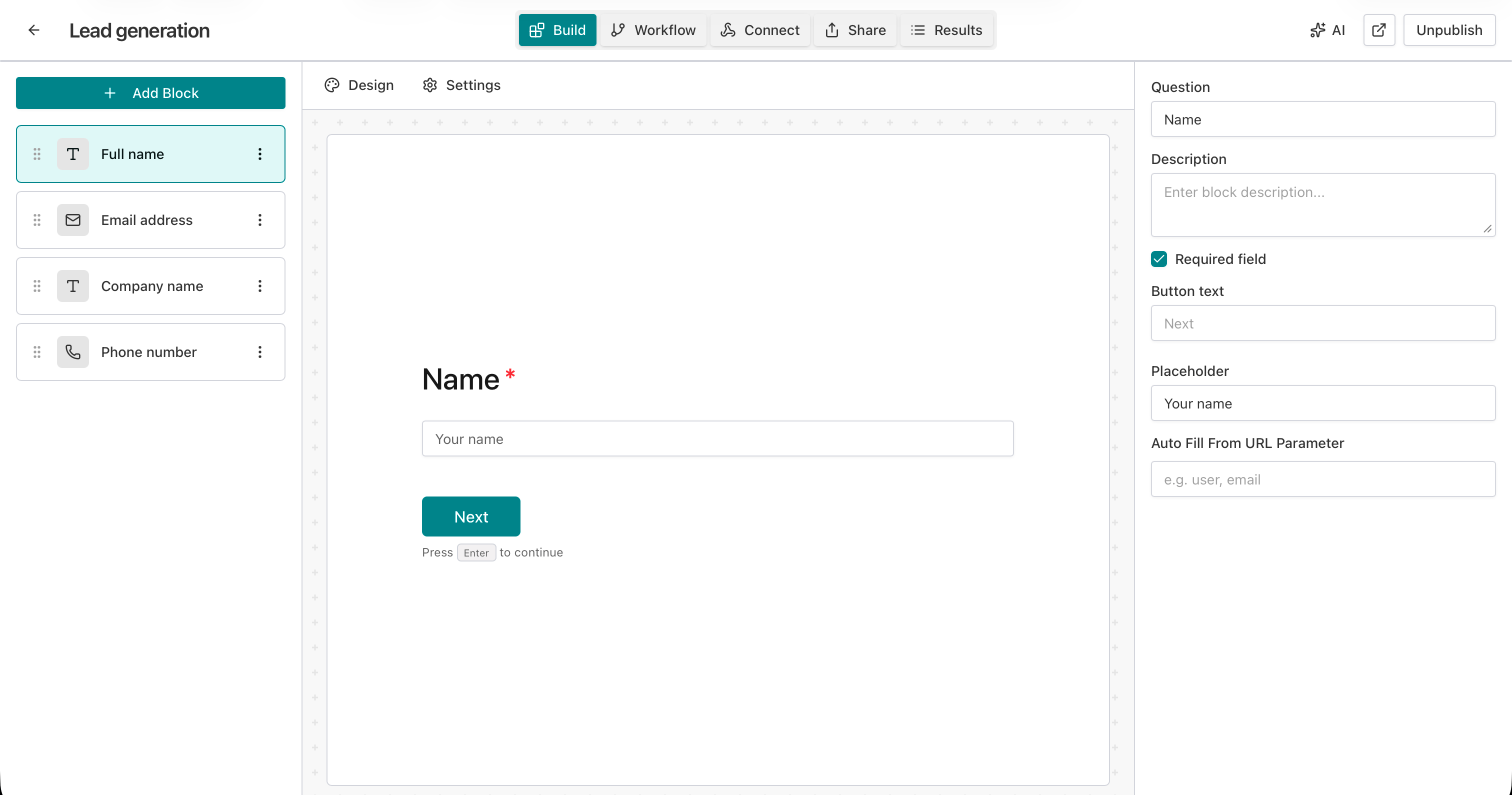
Step 1 — Open your form and go to Integrations
In the form builder, open the form you use for leads (contact, demo request, etc.). Go to the Integrations (or Connect) tab.
Step 2 — Open the Webhooks section
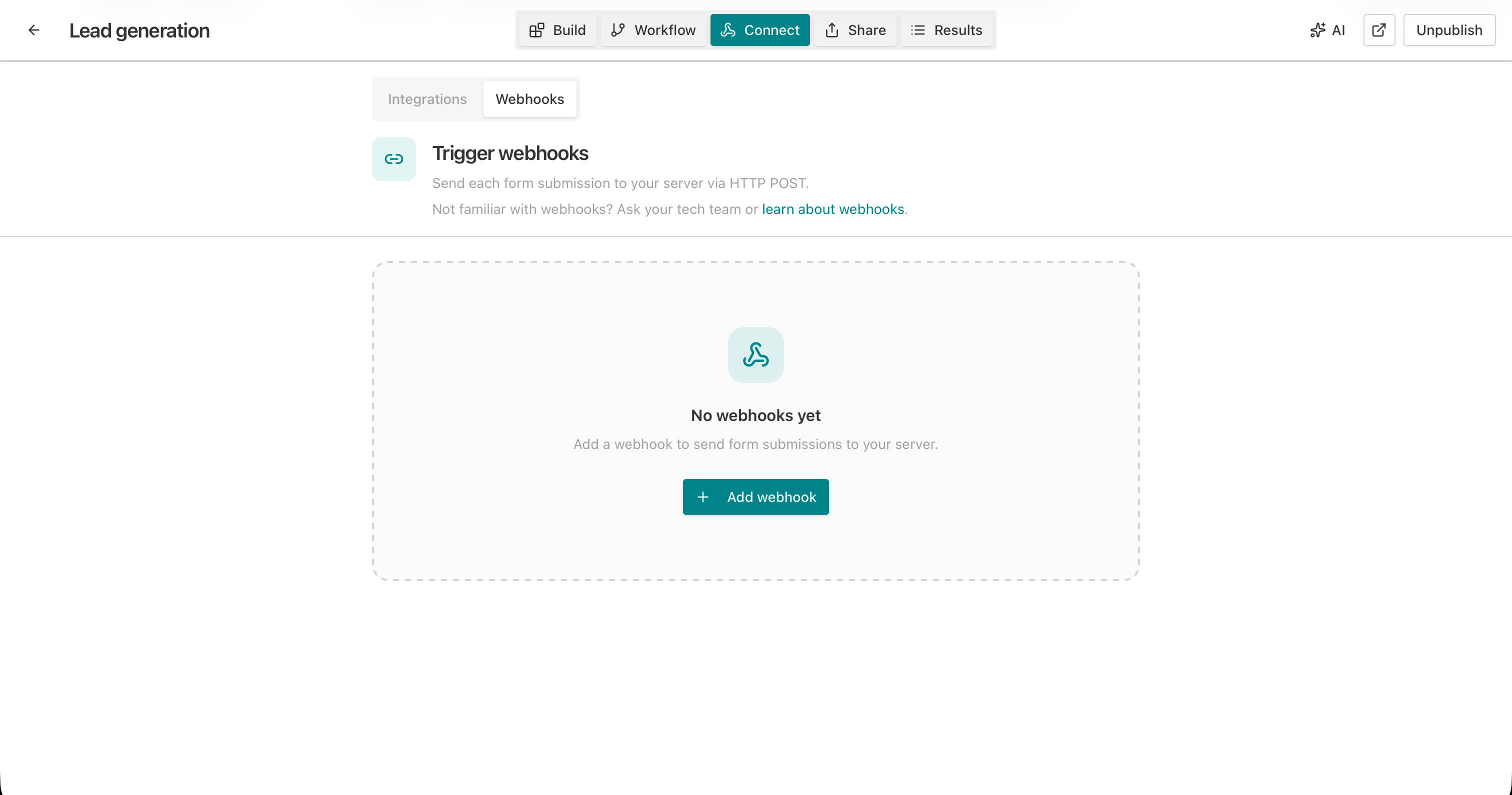
In Integrations, switch to the Webhooks sub-tab so you can add or manage webhook endpoints.
Step 3 — Add your CRM webhook URL
Click Add webhook. Enter:
- Endpoint: Your CRM’s webhook or API URL (e.g. HubSpot form submission endpoint, Salesforce REST endpoint, or your own middleware that writes to CRM). Must be HTTPS (URL max 2048 characters).
- Description (optional): e.g. “Production CRM” or “HubSpot” (max 500 characters).
- Secret (optional): A shared secret used to sign the request body; we send
X-Jupiter-Signatureso your server can verify the request (see verification docs).
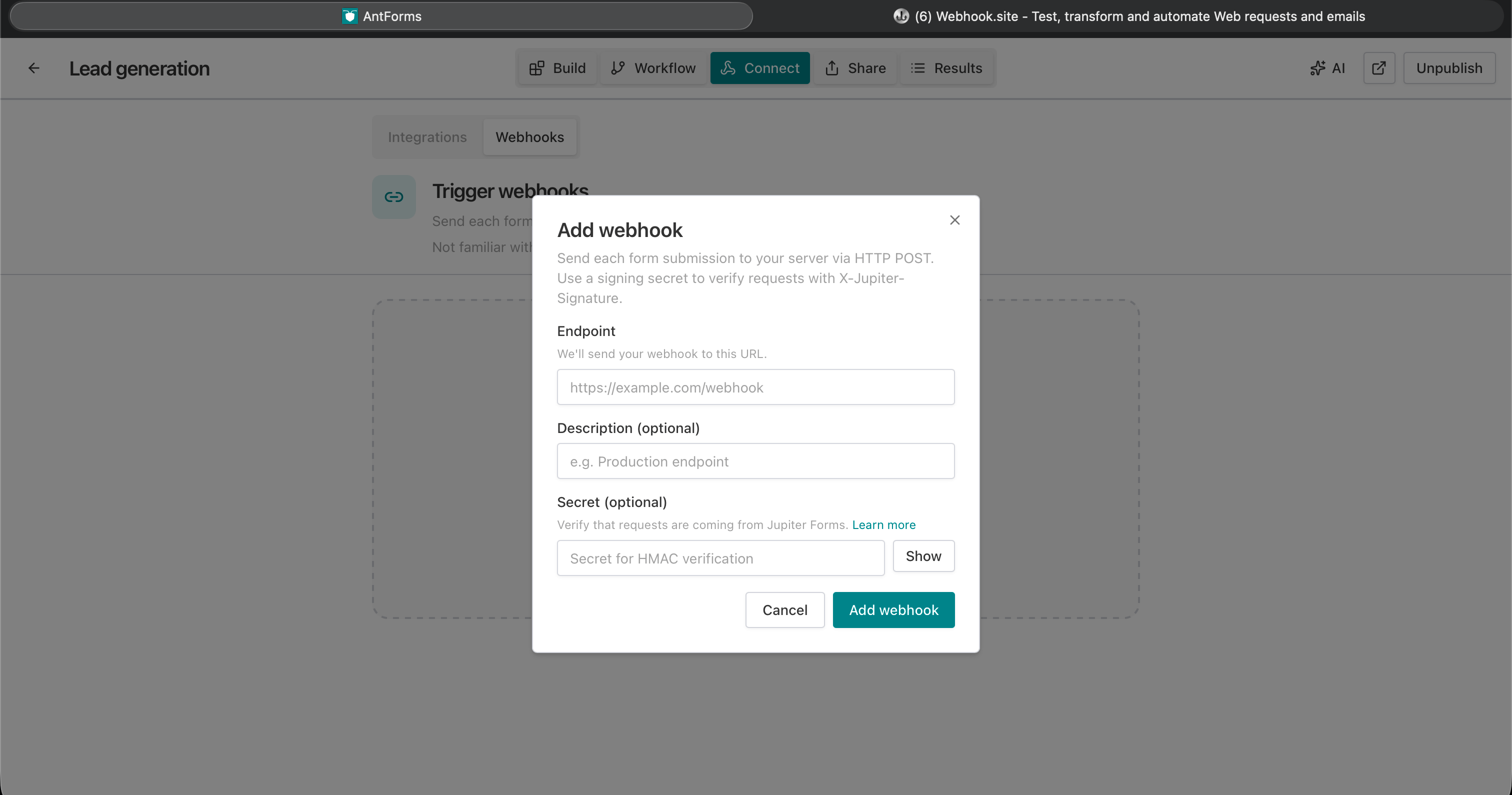
Save. The webhook is created and enabled by default; each new form submission will be POSTed to that URL.
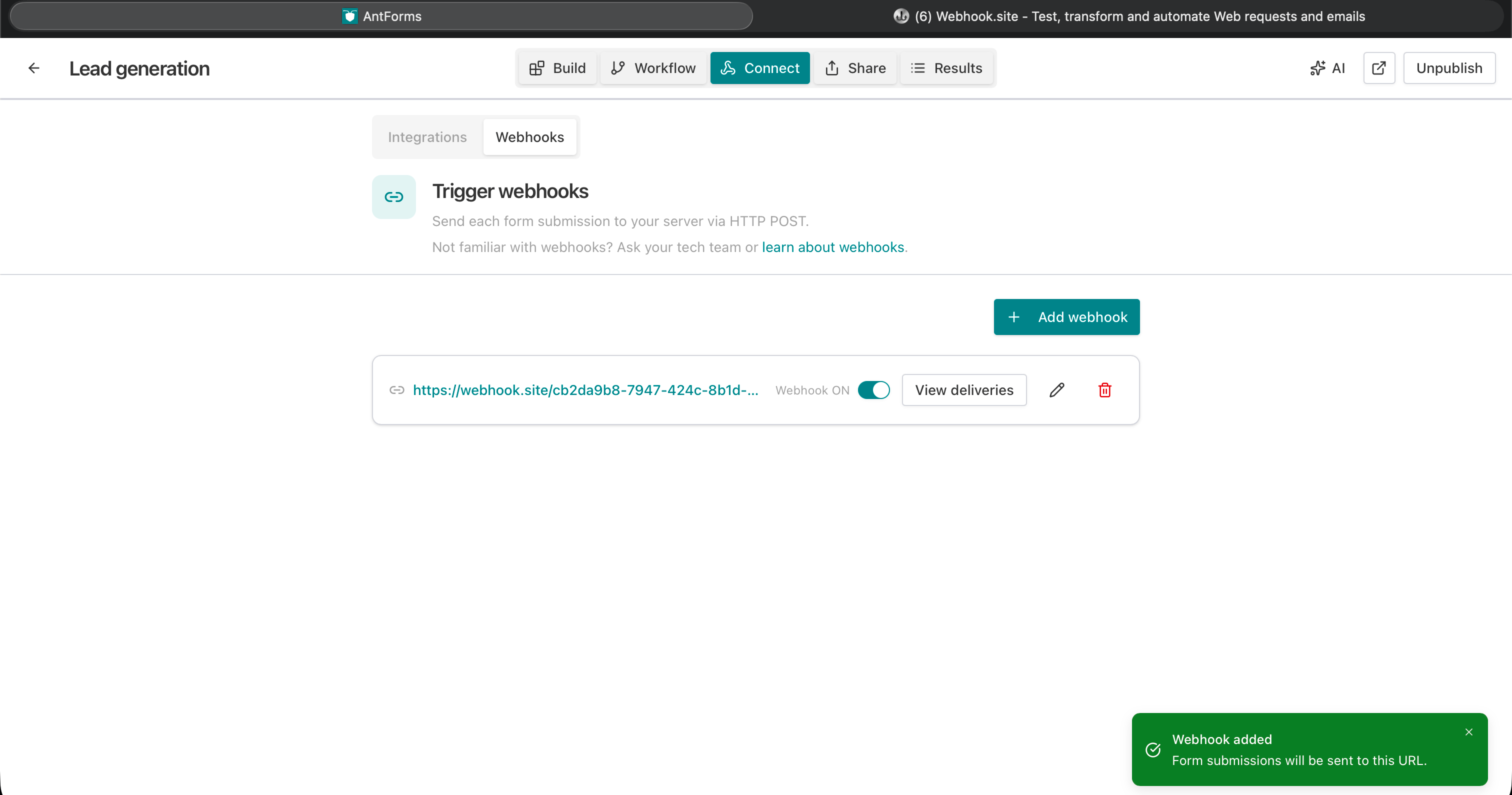
Step 4 — Confirm the webhook is listed and enabled
Back on the Webhooks list, you’ll see your endpoint, optional description, and an ON/OFF toggle. Leave it ON for live submissions.
Step 5 — Check deliveries (success/failure and retries)
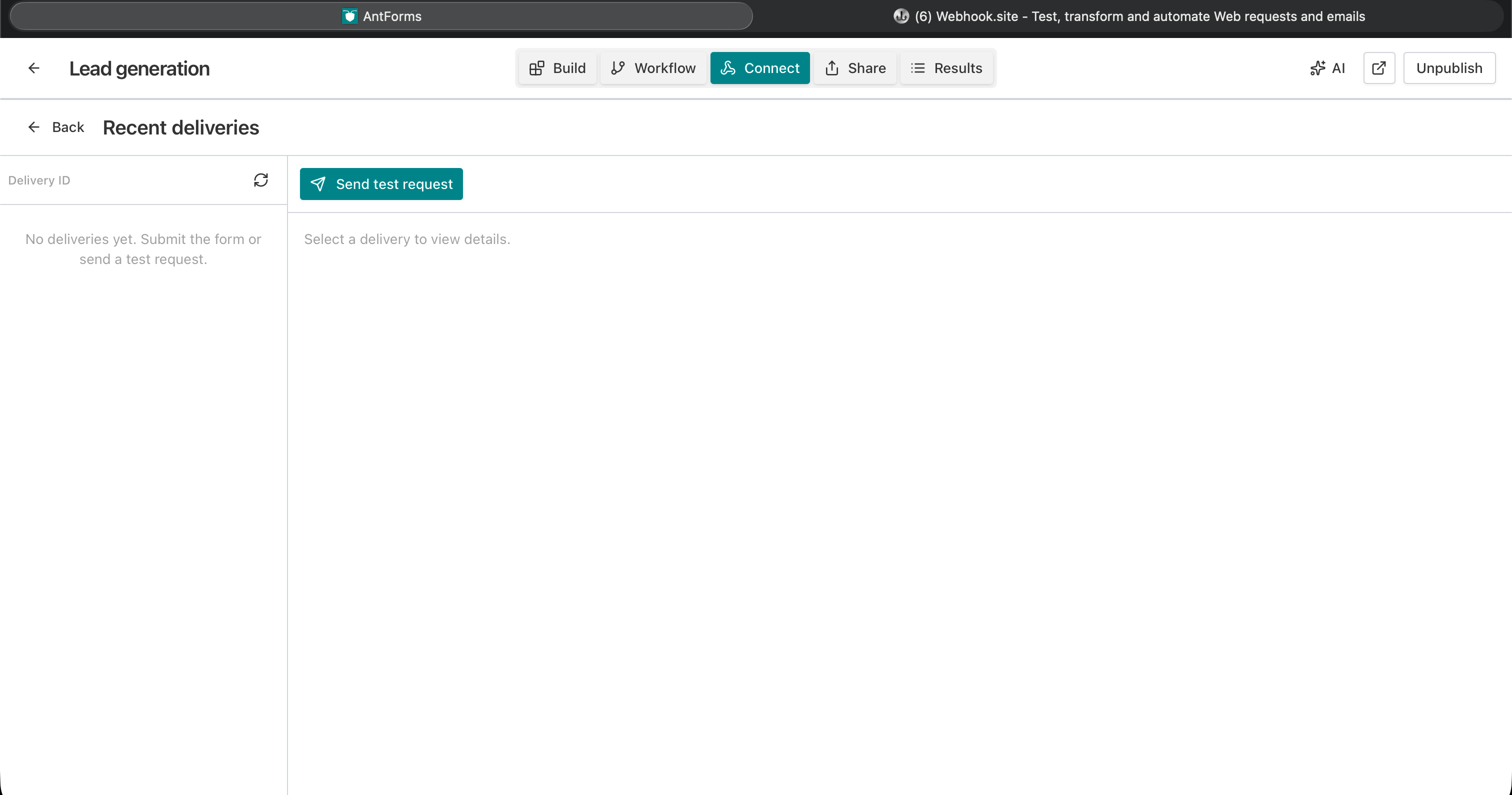
Open Deliveries for that webhook to see the last requests: status (success/failed), response code, and payload. Use this to debug CRM mapping or auth issues.
Step 6 — Send a test request (optional)
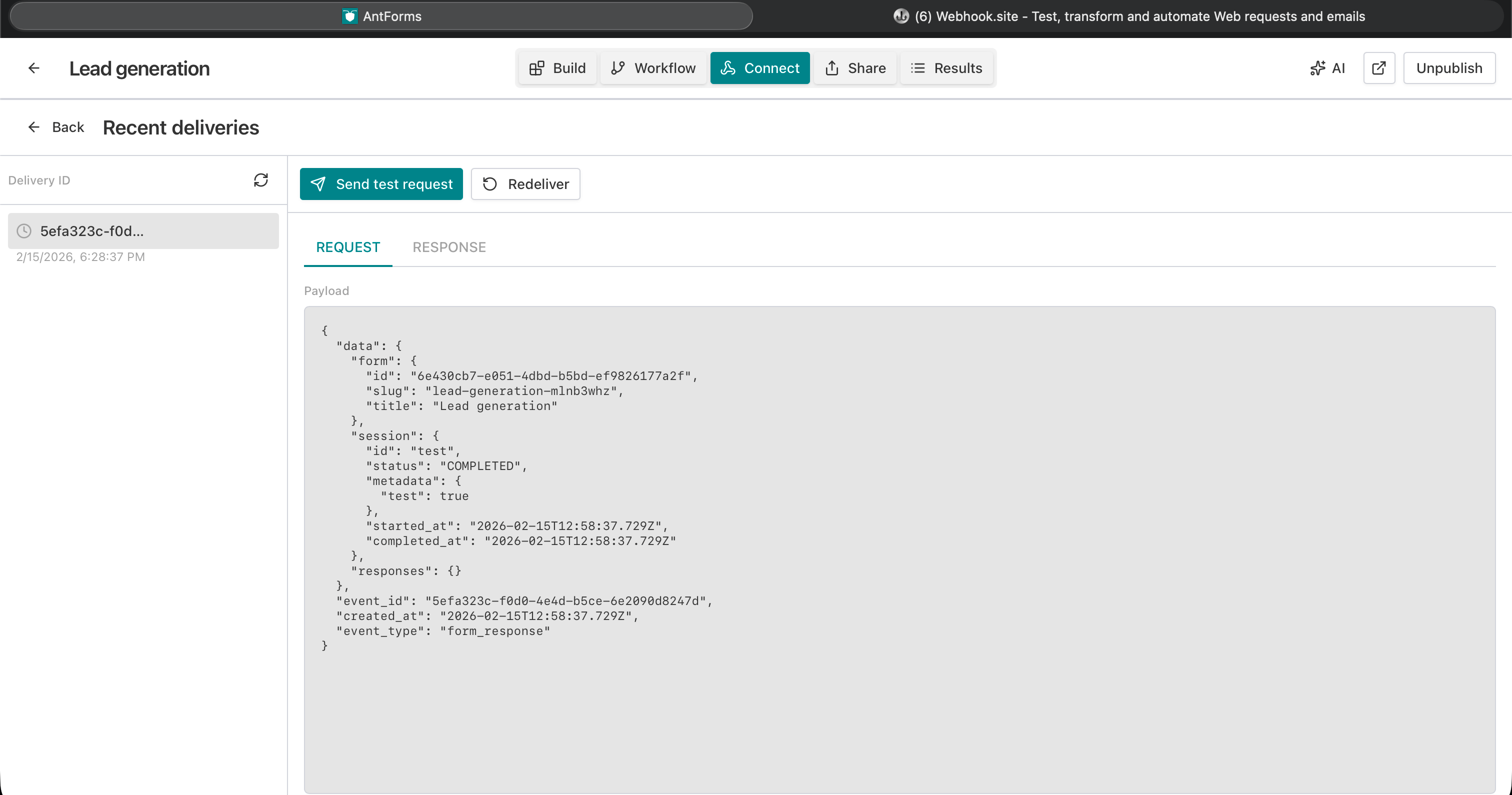
Use Send test request to POST a sample payload to your endpoint without submitting the form. Confirm your CRM or middleware receives it and returns 2xx.
Use case: form leads into HubSpot, Salesforce, or any CRM
Audience: Sales and marketing teams that use a CRM and collect leads via forms (contact, demo, pricing, newsletter).
Goal: Every form submission becomes a contact/lead in the CRM automatically—no manual copy-paste, no “forgot to add to CRM” gaps.
How it works:
- You add a webhook in the form builder pointing to:
- A native CRM webhook (if your CRM exposes one for form submissions), or
- A small middleware (e.g. serverless function or script) that accepts the JSON and calls your CRM’s API (create/update contact, add to list, etc.).
- On each form submit we POST the payload above to that URL.
- Your endpoint maps data.responses (keyed by block label: Name, Email, Company, Message, etc.) to CRM fields and returns 2xx.
- You see success/failure and retries in Deliveries.
Example mapping (conceptual):
data.responses["Email"].responses.email→ Contact emaildata.responses["Name"].responses.text→ Contact name (or split first/last if your form has two fields)data.responses["Company"].responses.text→ Company namedata.responses["Phone"].responses.textor.responses.phone→ Phonedata.responses["Message"].responses.text→ Note or “Message” fieldcreated_atordata.session.completed_at→ Lead source date or “Form submitted at”
If your CRM only has a “form submit” webhook with a fixed schema, your middleware can translate our payload into that schema before calling the CRM.
Example: middleware that forwards to CRM API
You don’t have to point the webhook directly at the CRM. A small backend can receive our POST and then call HubSpot, Salesforce, Pipedrive, etc.
Pseudocode (Node-style):
// Receive webhook POST
app.post('/webhook/form-to-crm', (req, res) => {
  const { event_type, data } = req.body;
  if (event_type !== 'form_response') return res.status(400).send('Unknown event');

  const r = data.responses || {};
  const get = (label: string, key: string) => r[label]?.responses?.[key] ?? '';
  const contact = {
    email: get('Email', 'email') || (r['Email']?.responses?.text as string),
    firstName: (get('Name', 'text') as string)?.split(' ')[0] ?? '',
    lastName: (get('Name', 'text') as string)?.split(' ').slice(1).join(' ') ?? '',
    company: get('Company', 'text') as string,
    phone: get('Phone', 'text') as string || get('Phone', 'phone') as string,
    note: get('Message', 'text') as string,
  };

  // Call your CRM API (e.g. HubSpot, Salesforce)
  crmClient.createOrUpdateContact(contact)
    .then(() => res.status(200).send('OK'))
    .catch((err) => res.status(500).send(err.message));
});
Your webhook URL would be https://your-domain.com/webhook/form-to-crm. For production, set a secret in the form builder and verify X-Jupiter-Signature using the raw request body (before parsing JSON) so only we can trigger this endpoint.
FAQs — form to CRM webhooks
Do I need Zapier or Make?
No. Webhooks send data directly to an HTTPS URL. You can use Zapier/Make if they expose a “webhook by Zapier” style URL that then pushes to your CRM, but you can also call your CRM API from your own server or serverless function.
What if my CRM doesn’t have a webhook?
Use a small backend (e.g. serverless function) that receives our POST and calls your CRM’s REST API to create/update contacts or leads. The payload template above gives you all the fields you need to map.
How do I verify that requests are from the form builder?
Set a secret when adding the webhook. We send X-Jupiter-Signature: sha256=<base64(HMAC-SHA256(secret, raw_body))>. Your server must verify using the raw request body (before parsing JSON) and the same secret; reject if the signature doesn’t match. See the product docs for details.
Are there rate limits?
Check your plan’s limits for webhook deliveries. There are no per-response caps on form submissions in the builder; webhooks are sent for each submission according to your configuration.
Can I send to multiple CRMs?
You can add up to 3 webhooks per form. Add one webhook per destination (e.g. one URL for HubSpot middleware, one for Salesforce). Each submission is sent to every enabled webhook. Use field mapping in your middleware to match data.responses to each CRM’s API.
What if my endpoint is down?
We retry on 5xx, 429, and timeouts (exponential backoff, up to 5 attempts). 4xx (except 429) are not retried. Check Deliveries for status and use Retry for failed or pending deliveries after fixing your endpoint.
Where do I add the webhook in the form builder?
Open your form → Integrations (or Connect) tab → Webhooks sub-tab → Add webhook. Enter your CRM or middleware URL (HTTPS), optional description and secret, then save. The webhook is enabled by default; toggle it off anytime without deleting.
Conclusion
Key takeaway: Use webhooks to send every form submission to your CRM in real time—one endpoint, no manual copy-paste. Use the payload template and Deliveries to map fields and debug.
Try AntForms to create a form and add your first webhook. For more, read webhooks for developers and webhooks sync form data to Google Sheets or Airtable.